Training Deep Models for Semantic Segmentation
This topic provides information for training deep models for semantic segmentation. Semantic segmentation is the task of classifying each pixel in an image from a predefined set of classes that are 'semantically interpretable' and correspond to real-world categories. This is also known as dense prediction because it predicts the meaning of each pixel.
In many cases, deep learning has surpassed other approaches, such as thresholding, K-means clustering, classic machine learning, and others, for semantic segmentation. In addition, applying a model on the same kind of data lets you benefit from consistent and repeatable segmentation results that are not influenced by any operator bias.
 Prerequisites
The following items are required for training a deep model for semantic segmentation:
- Training dataset(s) for the input (see Data Preparation).
- A target for the output(s), which must be a multi-ROI(s). For each class in the multi-ROI, voxels must be labeled in a semantically significant manner (see Labeling Multi-ROIs for Deep Learning).
- A model that supports semantic segmentation.
Note A selection of untrained models suitable for binary and multi-class semantic segmentation are supplied with the Deep Learning Tool (see Architectures and Editable Parameters for Semantic Segmentation Models). You also download a selection of ready-to-use models (see Ready-to-Use Deep Models) or pre-trained models (see Pre-Trained Models). Starting with a ready-to-use or pre-trained model often provides better and faster results with smaller training sets than using an untrained model.
The following items are optional for training a deep model for semantic segmentation:
- An ROI mask(s), for defining the working space for the model (see Applying Masks).
- A visual feedback region for monitoring the progress of training and a checkpoint cache so that you can save a copy of the model at a selected checkpoint (see Enabling Visual Feedback and Checkpoint Caches).
- A ground-truth dataset for validation. If a validation dataset is not available, you can assign a percentage of the training set for validation (see Validation Settings).
Enabling Visual Feedback and Checkpoint Caches
To help evaluate the progress of training deep models, you can designate a 2D rectangular region for visual feedback. With the Visual Feedback option selected, the model’s inference will be displayed in the Training dialog in real time as each epoch is completed (see Enabling Visual Feedback).
In addition, you can create a checkpoint cache so that you can save a copy of the model at a selected checkpoint (see Saving and Loading Model Checkpoints).
Labeling Multi-ROIs for Deep Learning
Multi-ROIs that are used as the target output for semantic segmentation must meet the following conditions:
-
The multi-ROIs must have the same geometry as the input training data.
-
For each class in the multi-ROI, voxels must be labeled in a semantically significant manner.
As shown in the illustration below, three distinct phases in a training set were labeled as separate classes.
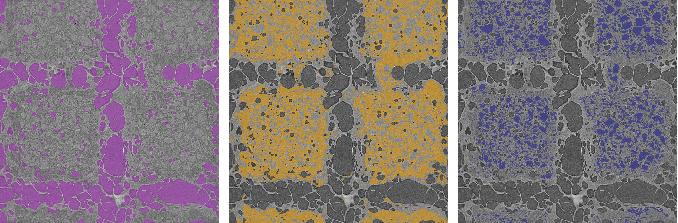
You can use any of the segmentation tools available on the ROI Painter and ROI Tools panels to label the voxels of a multi-ROI (see and Labeling Multi-ROIs).
Note You can also choose to work on multiple regions of interest, from which you can create a multi-ROI (see Creating Multi-ROIs from Regions of Interest).
-
Whenever possible, an equivalent number of voxels should be labeled for each class. If this is not possible, you can assign data proportional or custom class weights to solve class imbalance problems (see Classes and Class Weights).
-
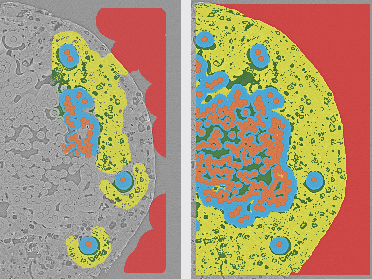
You can choose to label classes densely, in which all voxels contained within a patch are labeled, or you can deploy a sparse labeling strategy, in which only a limited number of voxels within a patch are labeled. In many cases, you may be able to achieve comparable results with sparse labeling as you would with densely labeled ground truths, which can be much more laborious to obtain.
An example of sparse labeling (on the left) versus dense labeling (on the right) is shown in the illustration below.
-
Applying a mask may limit the number of patches that are processed (see Applying Masks).
Generating Deep Models for Semantic Segmentation
Dragonfly's Deep Learning Tool provides a number of deep models — including U-Net, DeepLabV3+, FC-DenseNet, and others — that are suitable for binary and multi-class semantic segmentation. Semantic segmentation is the process of associating the voxels of an image with a class label.
- Choose Artificial Intelligence > Deep Learning Tool on the menu bar.
The Deep Learning Tool dialog appears.
- On the Model Overview panel, click the New button on the top-right.
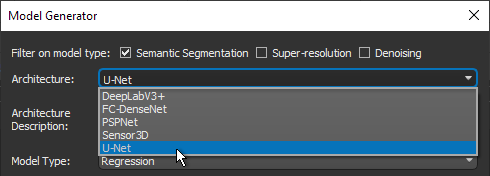
The Model Generator dialog appears (see Model Generator and Deep Learning Architectures for additional information about the dialog).
- Make sure that only Semantic Segmentation is checked for the Filter on model type options.
This will filter the available architectures to those recommended for segmentation.
- Choose the required architecture in the Architecture drop-down menu.
Note You can also download a selection of deep models pre-trained by the Dragonfly Team, and then use transfer learning to apply the learning to a specific semantic segmentation problem (see Pre-Trained Models).
Note A description of each architecture is available in the Architecture Description box, along with a link for more detailed information.
Recommendation U-Net models are often the easiest to train and produce good results in many cases.
- Choose Semantic segmentation in the Model Type drop-down menu.
- Enter the required class count for the neural network in the Class Count box.
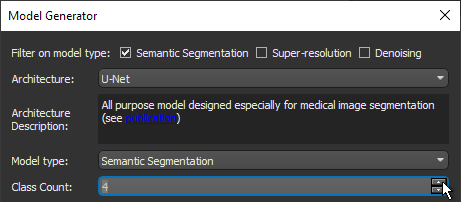
For example, if your training set multi-ROI has four classes, then you must enter a 'Class Count' of 4. If you are training a model for binary segmentation, your multi-ROI would have two classes and you must enter a class count of 2.
- Enter the required number of inputs in the Input count box. For example, when you are working with data from simultaneous image acquisition systems you might want to select each modality as an input.
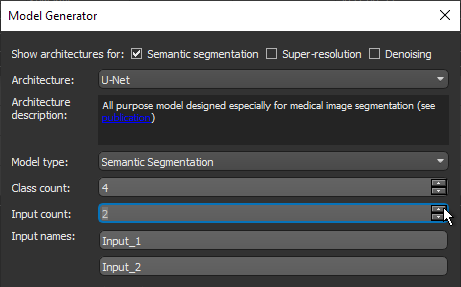
Note If required, you can edit the input names.
- Enter a name and description for the new model, as required.
- Edit the default parameters of the selected architecture, optional (see Architectures and Editable Parameters for Semantic Segmentation Models).
Note An initial set of training parameters, which should work well in most cases, are provided with the semantic segmentation models supplied with the Deep Learning Tool. You should also note that training parameters are saved with each model and can be reused for future training.
- Click Generate.
After processing is complete, a confirmation message appears at the bottom of the dialog.
- Close the Model Generator dialog.
- Select the new model in the Model list and then click the Load button, if required.
Information about the loaded model appears in the dialog (see Details), while a graph view of the data flow is available on the Model Editing panel (see Model Editing Panel).
- Continue to the topic Training Semantic Segmentation Models to learn how to train your new model for multi-class segmentation.
Training Semantic Segmentation Models
You can start training a supported model for semantic segmentation after you have prepared your training input(s) and output(s), as well as any required masks (see Prerequisites).
- Open the Deep Learning Tool, if it is not already onscreen.
To open the Deep Learning Tool, choose Artificial Intelligence > Deep Learning Tool on the menu bar.
- Do one of the following, as required:
- Generate a new model for semantic segmentation (see Generating Deep Models for Semantic Segmentation).
- Select a model from the Model list that contains the required architecture, number of classes, inputs, and input dimension.
- Import a model from Keras (see Keras models that your import into Dragonfly's Deep Learning Tool must meet the following requirements:).
- Select the required model from the Model list.
General information about the model appears in the Details box, while the Classes box lists the number of classes selected for the model (see Model Overview Panel).
Note You can edit the color and name assigned to each class, as well as re-assign class weights (see Classes and Class Weights).
- Edit the selected model, if required (see Model Editing Panel).
Note In most cases, you should be able to train a semantic segmentation model supplied with the Deep Learning Tool as is, without making changes to its architecture.
- Click the Go to Training button at the bottom of the dialog.
The Model Training panel appears (see Model Training Panel).
- Do the following on the Inputs tab for each set of training data that you want to train the model with:
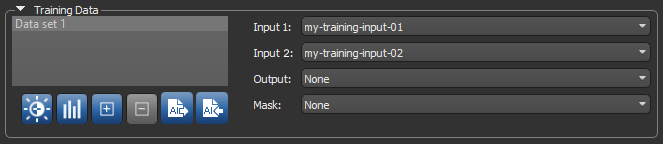
- Choose your input dataset in the Input drop-down menu.
Note If your model requires multiple inputs, select the additional input(s), as required.
Click the Edit Calibration
 button to open the Normalization dialog, in which you can normalize calibrated and uncalibrated datasets prior to training (see Normalizing Data Ranges Prior to Training or Inference).
- Choose the output multi-ROI in the Output drop-down menu.
Note Only multi-ROIs with the number of classes corresponding to model's class count and the geometry of the input dataset(s) will be available in the menu.
- Choose a mask in the Mask drop-down menu, optional. You should note that in cases in which only a limited number of slices are labeled on the target multi-ROI, a mask will be generated automatically to include only those slices (see Applying Masks).
The completed Training Data should look something like this:
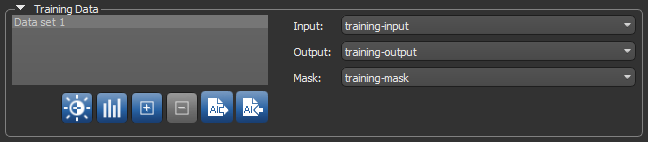
Note If you are training with multiple training sets, click the Add New
 button and then choose the required input(s), output, and mask for the additional item(s).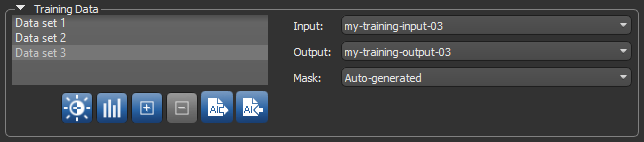
- Choose your input dataset in the Input drop-down menu.
- Do the following, as required.
- Adjust the data augmentation settings (see Data Augmentation Settings).
- Adjust the validation settings. If you plan to use sparse labeling, you will need to select the 'Use voxel-wise validation' option (see Validation Settings).
- Add a region for visual feedback, optional (see Enabling Visual Feedback).
- Click the Training Parameters tab and then choose the required settings.
See Basic Settings for information about choosing an input (patch) size, epochs number, loss function, optimization algorithm, and so on.
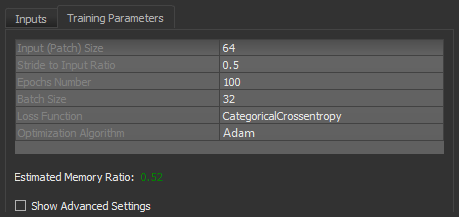
Note You should monitor the estimated memory ratio when you choose the training parameter settings. The ratio should not exceed 1.00 (see Estimated Memory Ratio).
- If required, check the Show Advanced Settings option and then choose the advanced training parameters (see Advanced Settings).
You should note that this step is optional and that these settings can be adjusted after you have evaluated the initial training results.
- Click the Train button.
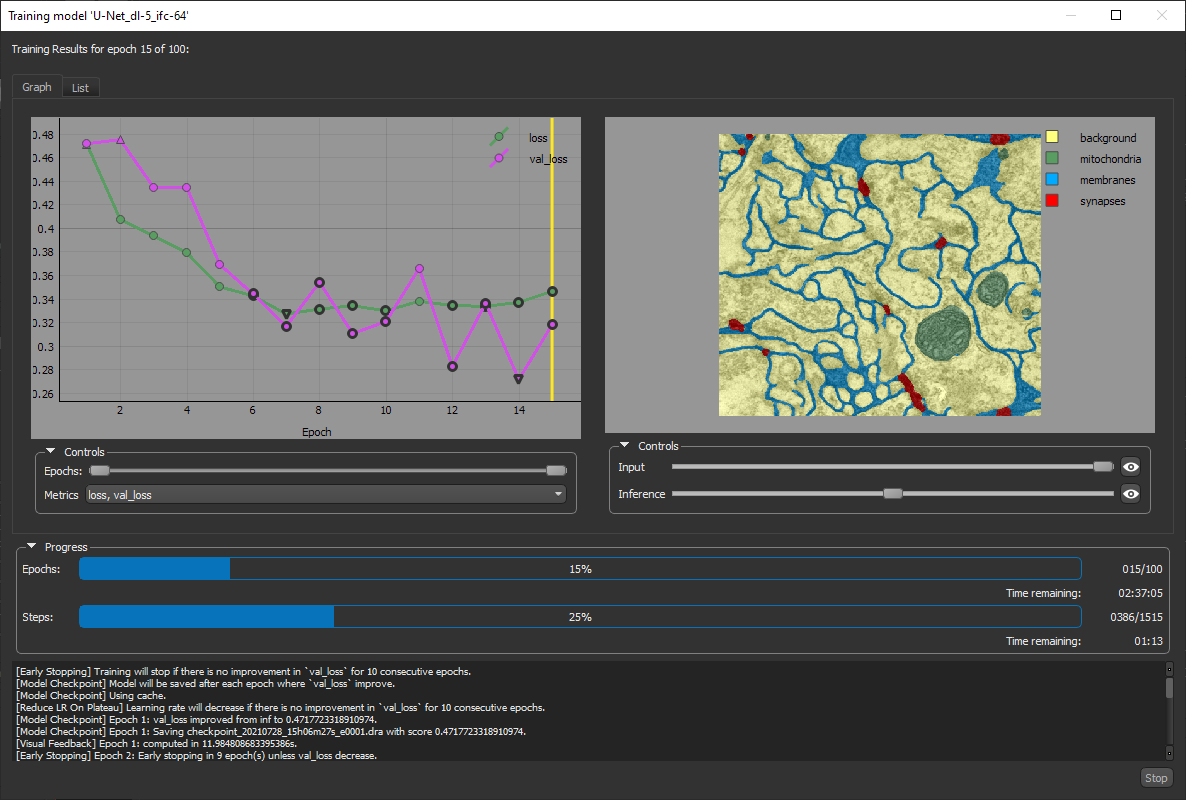
You can monitor the progress of training in the Training Model dialog, as shown below.
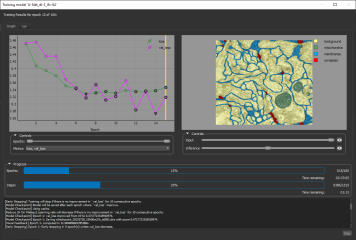
The Training dialog, which can provide visual feedback for monitoring training, includes detailed information about the model being trained and the model input(s). The collapsible Information box at the top of the dialog includes a description of the model, the training parameters, data augmentation settings, and information about the training data.
Recommendation During training, the default quantities 'loss' and 'val_loss' should decrease. You should continue to train until 'val_loss' stops decreasing.
- Wait for training the completed. You can also stop training at anytime, if required.
- Evaluate the results for the training session, recommended (see Evaluating Training Results).
- Preview the results of applying the trained model to the input dataset, recommended (see Previewing Model Inference).
- If the results are not satisfactory, you should consider doing one or more of the following and then retraining the model:
- Label additional voxels on the target output multi-ROI(s) that are centered on problematic areas (see Editing Classes and Labels) and apply a mask to those areas (see Applying Masks).
- Add an additional training set.
- Adjust the data augmentation settings (see Data Augmentation Settings).
- Adjust the training parameter settings (see Basic Settings and Advanced Settings).
Note If your results continue to be unsatisfactory, you might consider changing the selected model architecture.
- Generate additional previews of the original data or test set to further evaluate the model, recommended (see Previewing Model Inference).
- Segment the original dataset or similar datasets (see Applying Deep Models).
Note You can also process datasets in the Segment with AI panel (see Segment with AI).